Reports
How To Create a Project Level P&L in LiveFlow?
SHARE THIS Article
There are two different ways to do this.
Method 1 is to filter the P&L report by a customer/project.
Method 2 is to set each customer/project into its own column on the P&L.
Method 1:
Open LiveFlow
Go to the Create Report tab
Select a Profit & Loss report
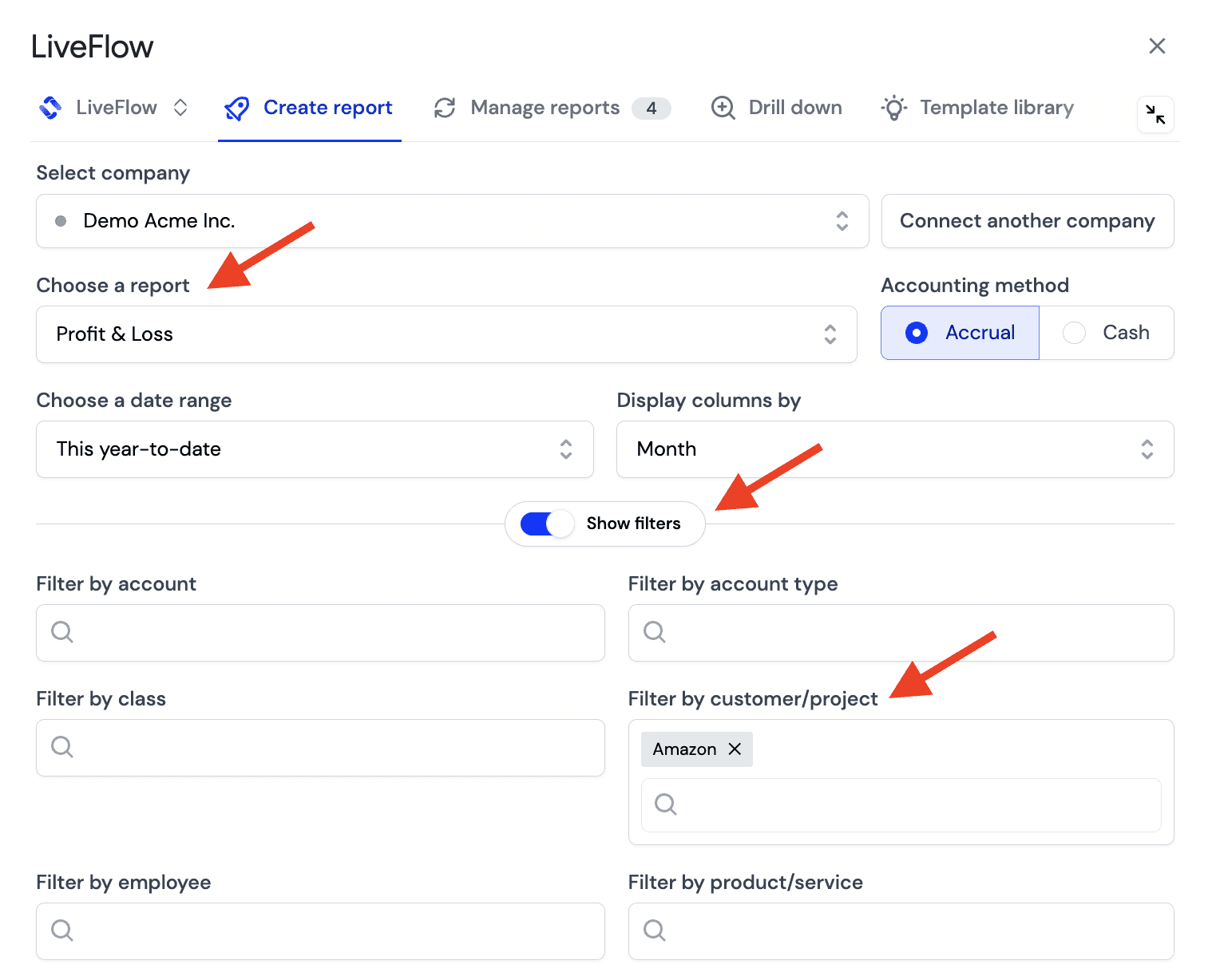
Click on Show Filters
Click on Filter by Customer/Project
Select the filter called Filter by Customer/Project
Click Create Live Report to import the P&L report
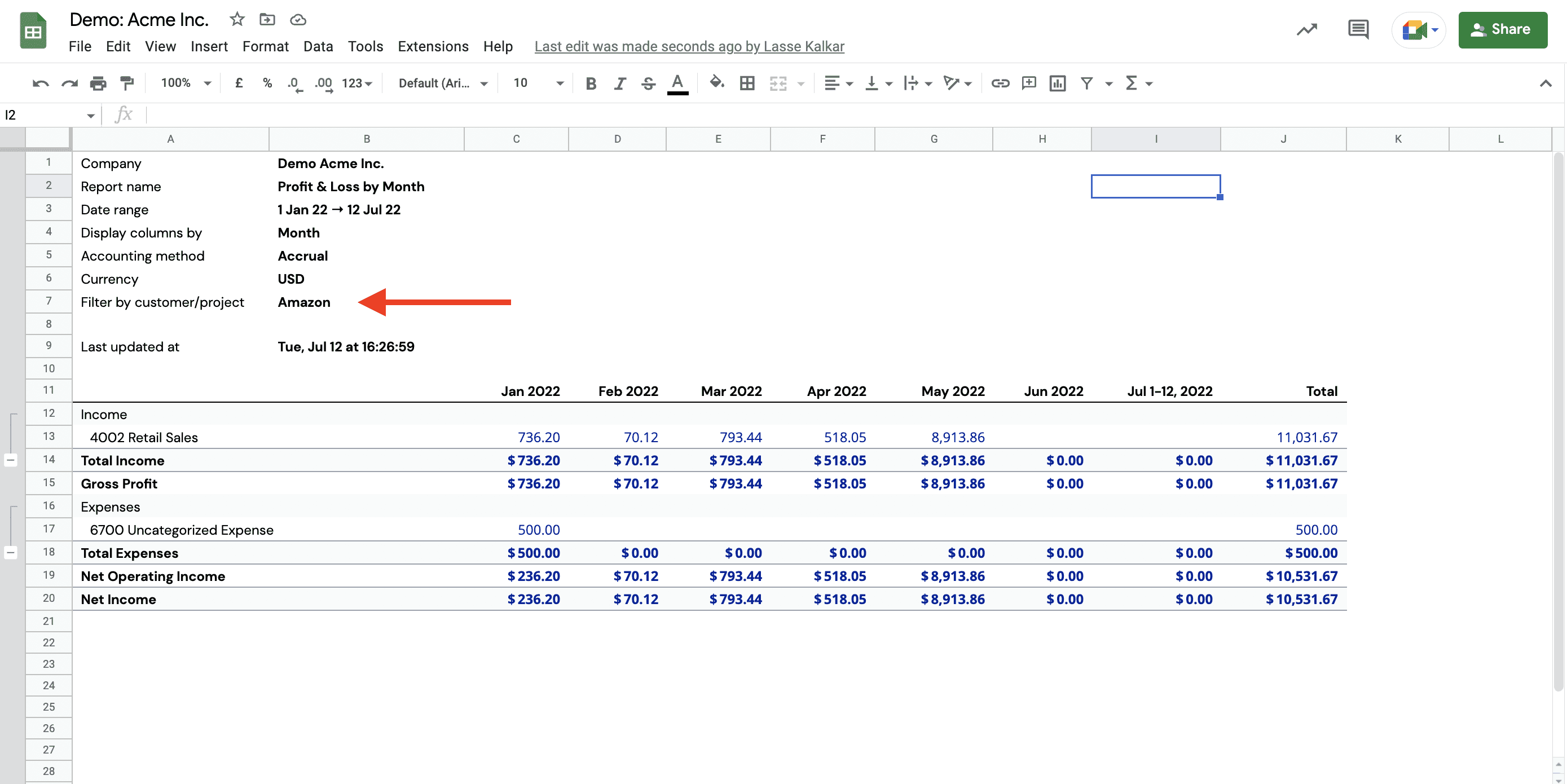
The result? See an example below
Method 2
Open LiveFlow
Go to the Create Report tab
Select a Profit & Loss report
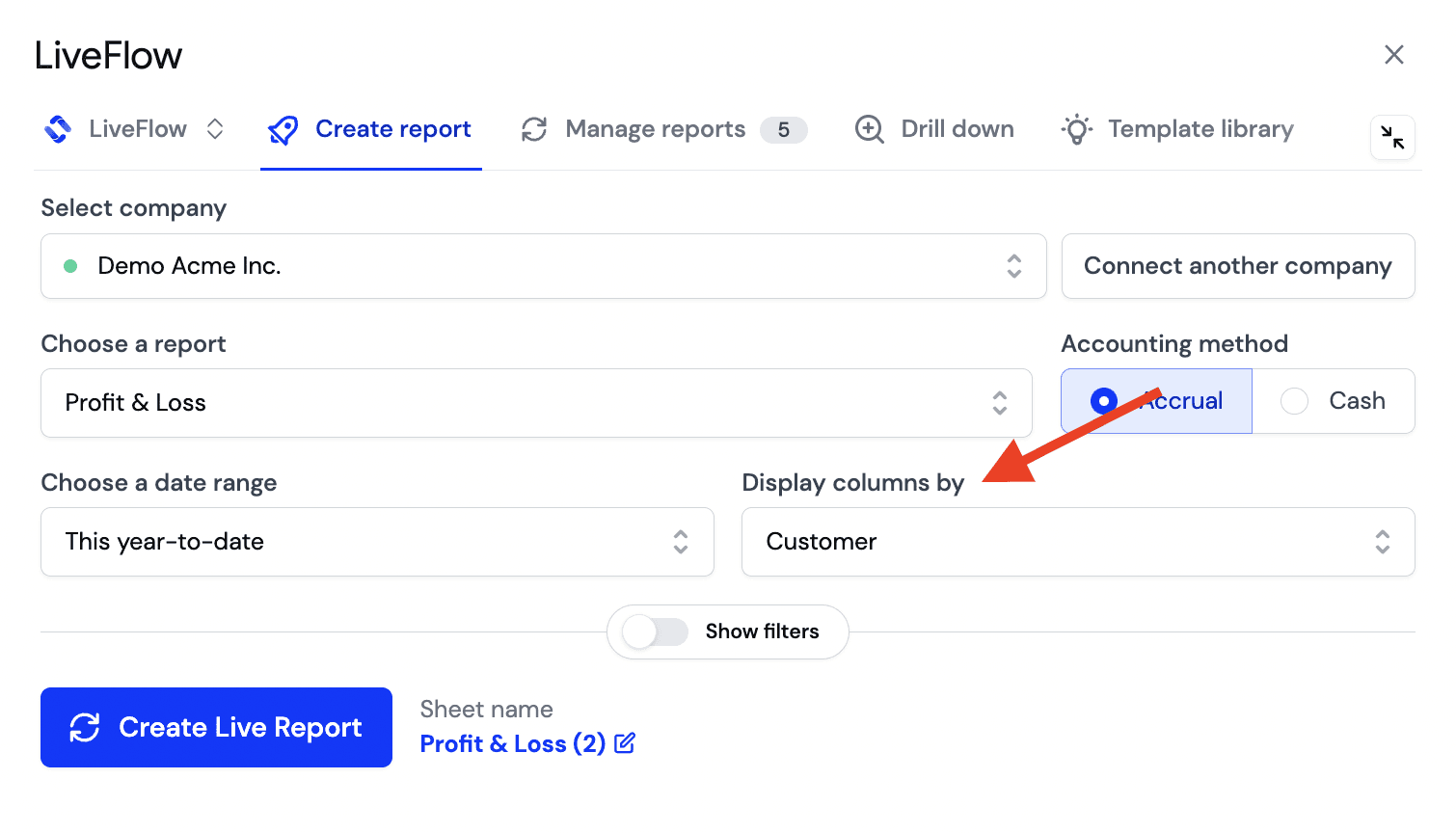
Select the Display Columns By dropdown
Set it to be Customer
Click Create Live Report to import the P&L report
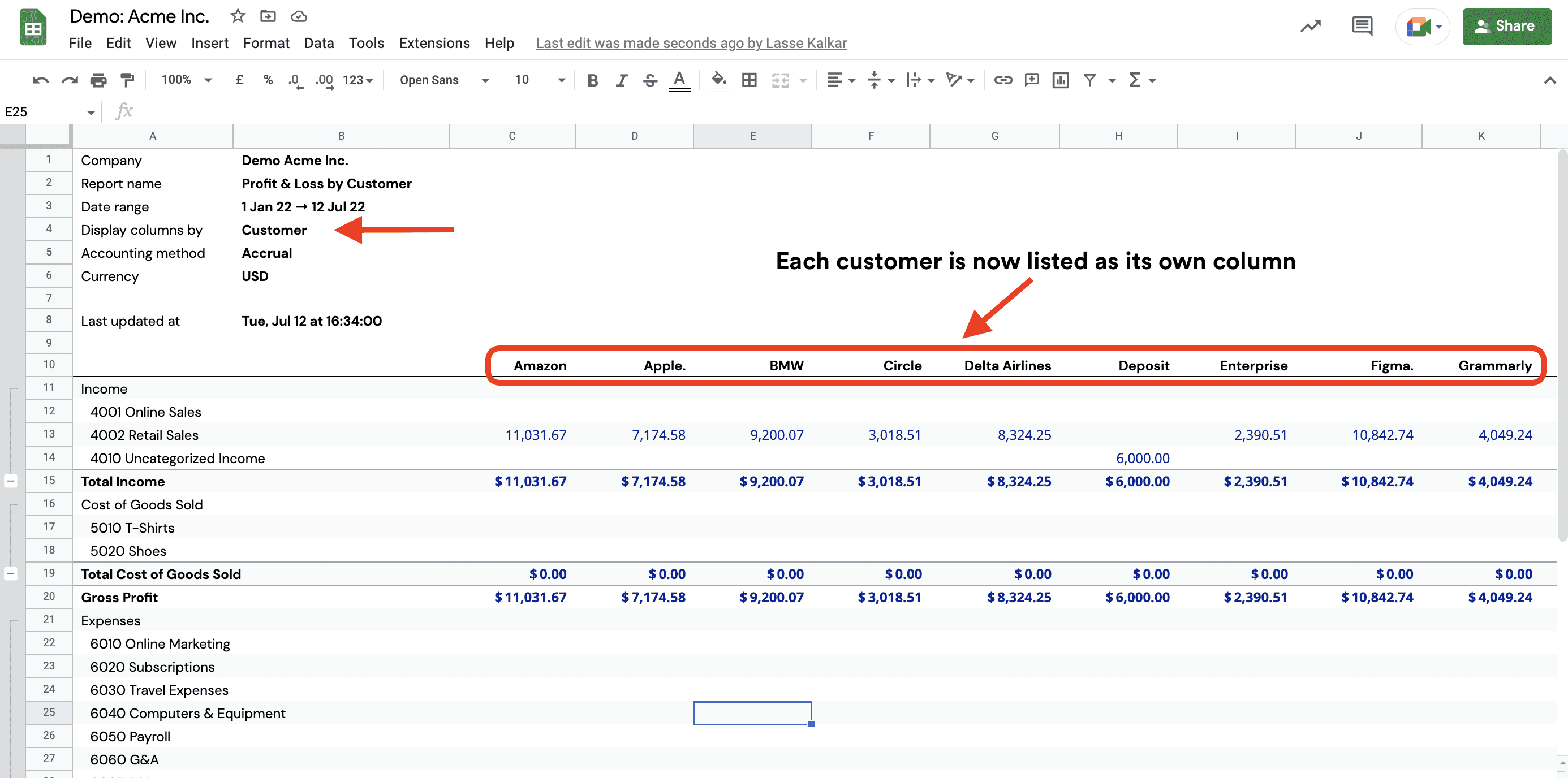
And below is the result of choosing Display Columns By: Customer
Supercharge your financial reporting