LiveFlow 101 Guides
LiveFlow: Quickstart Guide
SHARE THIS Article
Welcome to LiveFlow!
Here is a short and quick guide on how to get started.
1) How To Open LiveFlow
Open your Google Sheet
Go to Extensions -> LiveFlow -> Get started
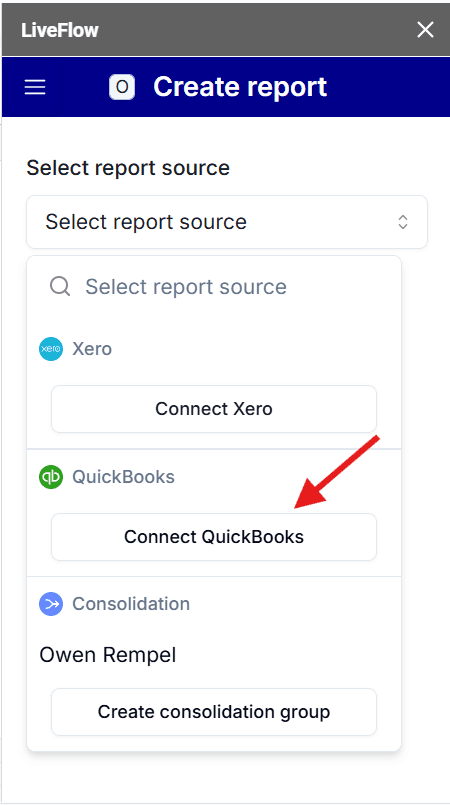
Connect your QuickBooks account(s)
2) How To Import a Report
Open your Google Sheet.
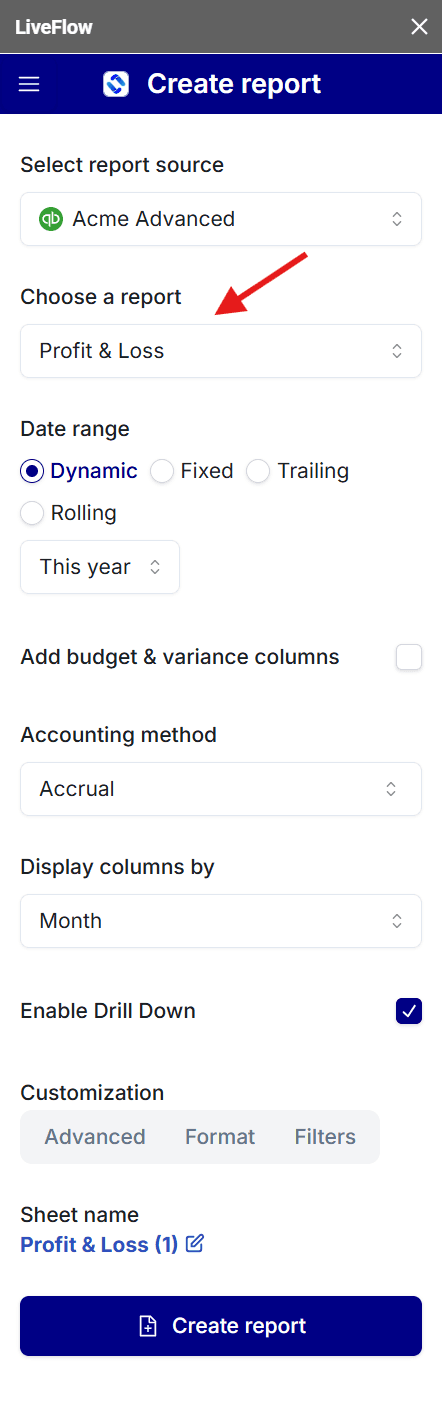
Open LiveFlow
Select a report of your choice
Click Create Live Report
3) How To Refresh a Report?
There are two ways to refresh a report.
Method 1 (recommended):
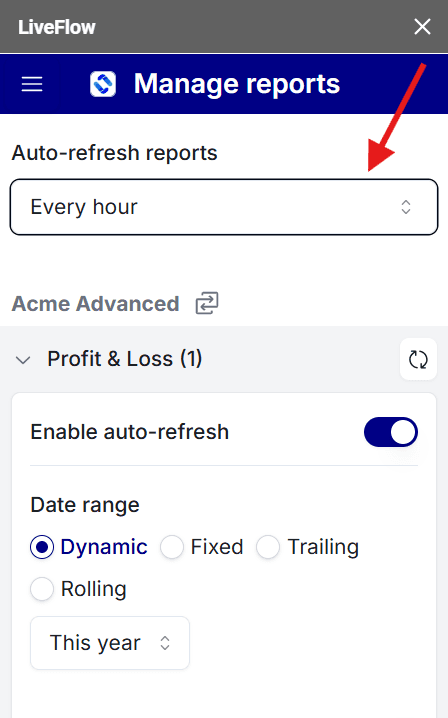
Open LiveFlow
Go to Manage Reports
Set your reports to automatically refresh Every Hour
Method 2:
Go to Extensions -> LiveFlow -> Refresh All Reports
Wait a few seconds and your report will be refreshed
4) How To Connect Multiple QuickBooks accounts?
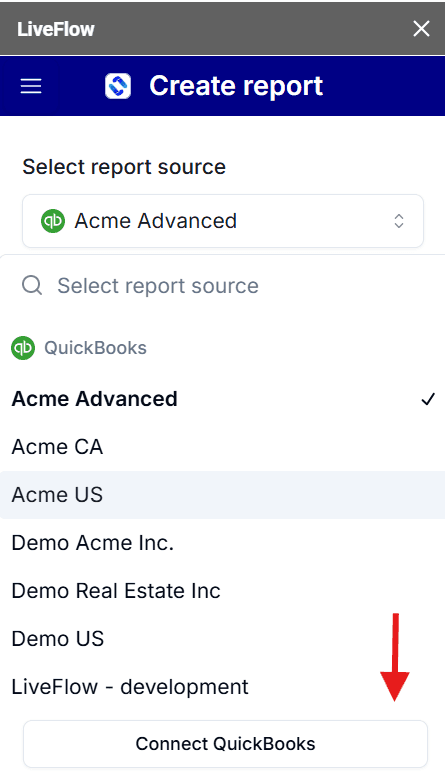
Open LiveFlow
Click on "Connect Another Account"
Connect your other QuickBooks account
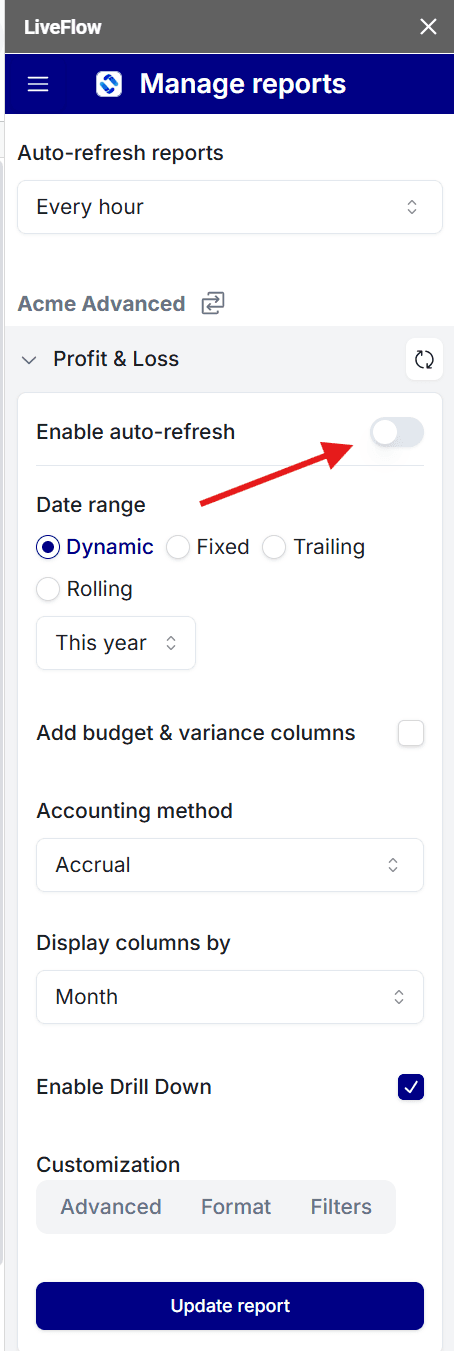
5) How To Disable Auto-Refresh in LiveFlow?
Open LiveFlow
Go to Manage Reports
Switch the "Enable auto-refresh" toggle so that's disabled
6) How To Disable Links to QuickBooks
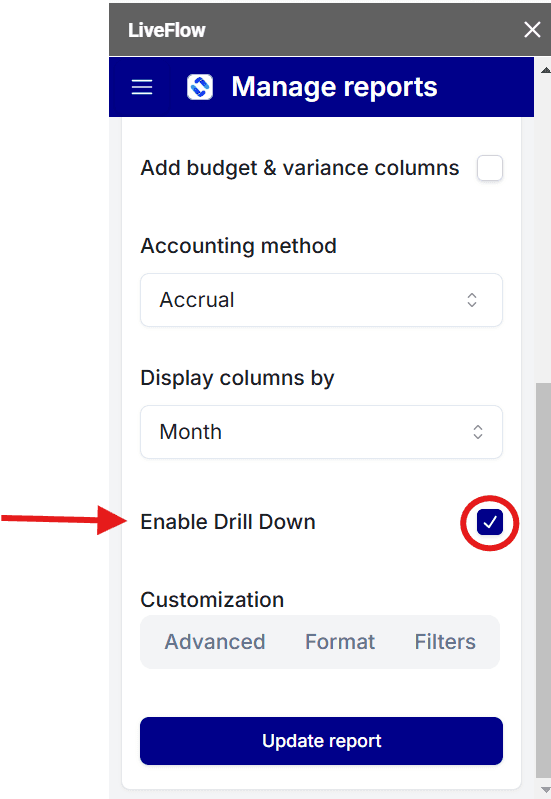
If you do not want your report to include direct links to QuickBooks, follow these steps:
Open LiveFlow
Go to Manage Reports
Select the report you want to disable QuickBooks linking for
Click on the Disable links to QuickBooks toggle and turn it off
Click Update & Refresh to update your settings
7) How To Contact our Customer Support?
We’re always here to help! There are multiple ways to contact us:
Open LiveFlow
Go to the ‘Need Help’ button at the bottom right of the app
Tell us how we can help and we'll be with you! We usually reply within a few minutes.
Email Us at help@liveflow.io
Contact your customer success manager
If your plan includes a dedicated customer success manager, you can reach out to them directly over email.
Supercharge your financial reporting