Google Sheets Formulas
none
IMPORTHTML Function in Google Sheets: Explained
SHARE THIS Article
In this article, you will learn how to use the IMPORTHTML formula in Google Sheets.
How does the IMPORTHTML formula in Google Sheets?
The IMPORTHTML function in Google Sheets allows users to import data from a table or list within an HTML page into a Google Sheets spreadsheet.
This can be useful for quickly importing structured data from a website or other online source into a spreadsheet for further analysis or processing.
Your next financial spreadsheet could be right here!
100+ spreadsheet templates, from FP&A to tax planning.
Free Spreadsheet Templates
How to use the IMPORTHTML function in Google Sheets
To use the IMPORTHTML function, you need to specify the URL of the HTML page that contains the data you want to import, the table or list that you want to import (identified by its index on the page), and the type of data you want to import (either a "table" or a "list").
These parameters are entered into the formula bar of a cell in your Google Sheets spreadsheet, surrounded by quotation marks (when you manually input these parameters, not by cell reference), in the following format:
“url” is an URL of the page, including protocol (e.g., http://), from which you want to pull out a table or list.
“query” is either "list" or "table", depending on which type of structure the desired data has.
“index” is an index, starting at 1, which identifies which table or list in the web page should be returned.
For example, assume you want to import the first table on a page in Wikipedia, located at "https://example.com/page.html", into your Google Sheets worksheet.
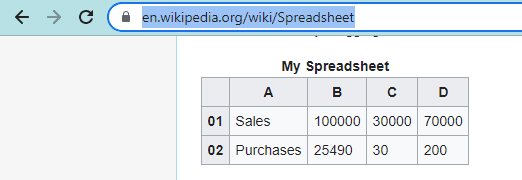
You would enter the following formula:
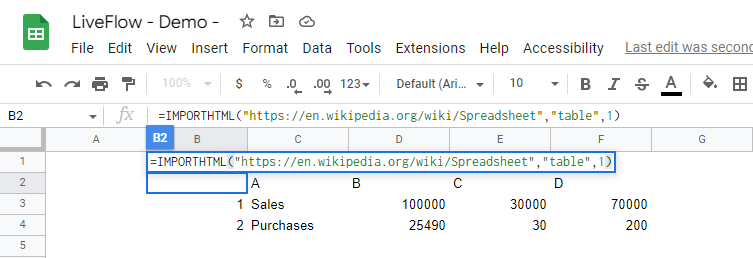
Once you have entered the formula, the data from the specified table on the page will be imported into the cell and any cells below it automatically.
You can then use the data in this table for further analysis or processing, just like any other data in your spreadsheet.
Learn how LiveFlow can save you hours a month on financial reporting!
Just 30 minutes can change the way your business operates forever.
Book a Demo
It's important to note that the IMPORTHTML function can only import data from HTML pages that are publicly accessible, so you cannot use it to import data from a password-protected website or a website that requires a login.
Additionally, the IMPORTHTML function can only import data from tables or lists within an HTML page, so it may not be suitable for importing data from other sources.